
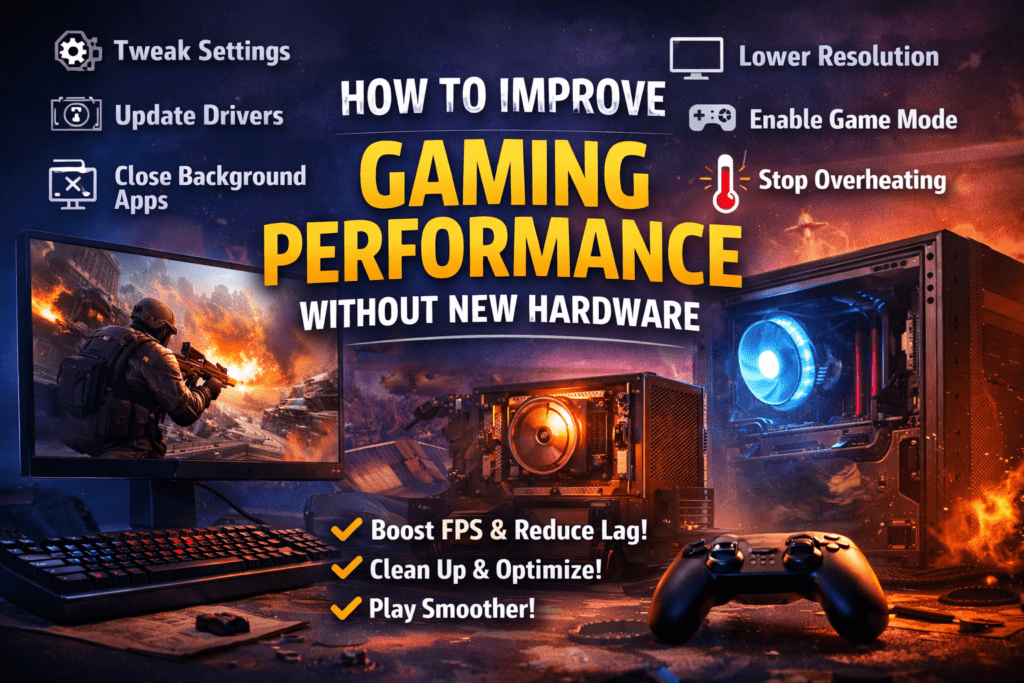
Introduction: The Night Your Game Should Have Won
It’s late. You finally have time to play. You launch your favorite game, the music kicks in, the loading screen fades—and then it happens. Stuttering. Frame drops. Input lag at the worst possible moment. You lose a fight you should have won, and the first thought hits your mind: “I need a new PC.”
But here’s the truth most gamers learn too late—hardware is often not the real problem.
Over the last decade, I’ve seen countless players dramatically improve gaming performance without spending a single dollar on new hardware. Small system tweaks, smarter settings, and better habits can unlock performance you didn’t even know your system had.
This guide walks you through practical, proven steps to boost gaming performance using what you already own—no hype, no fake promises, just results.
Step 1: Start With Your In-Game Graphics Settings
Lower the Settings That Actually Matter
Most gamers lower “graphics quality” and stop there. That’s a mistake. Some settings affect performance far more than others.
Focus on reducing:
- Shadows (high performance cost, low gameplay impact)
- Anti-aliasing (especially MSAA or TAA)
- Motion blur & film grain (visual only, no gameplay benefit)
- Volumetric effects (fog, god rays, smoke)
Keep these higher if possible:
- Texture quality (mostly uses VRAM, not FPS)
- Anisotropic filtering (minimal performance impact)
Tip: Use preset → then customize manually. Presets are rarely optimized.
Step 2: Optimize Screen Resolution the Smart Way
Resolution has a massive impact on FPS.
If you’re gaming at:
- 1440p → try 1080p
- 1080p → try 900p or 85–90% render scale
Many modern games include:
- Render scale sliders
- Upscaling options (FSR, XeSS, DLSS-like systems)
Lowering internal resolution while keeping UI sharp can give you 10–30% FPS gains with minimal visual loss.
Step 3: Update the Right Drivers (Not Everything)
Graphics Drivers Matter—But Timing Matters More
Always:
- Update GPU drivers for major game releases
- Use clean installation when facing performance issues
Avoid:
- Beta drivers unless required
- Auto-updating random system drivers
For laptops:
- Check manufacturer-approved drivers first
Some laptops throttle performance with generic drivers.
Step 4: Kill Background Processes (The Silent FPS Killers)
Even a strong system struggles when background apps steal resources.
Before launching a game:
- Close browsers (especially Chrome with many tabs)
- Disable game launchers you’re not using
- Exit overlays you don’t need (recorders, chat apps)
Use Task Manager to:
- Sort by CPU and Memory usage
- Identify apps that spike during gameplay
Bonus: Disable startup apps you never use. Faster boot, smoother gaming.
Step 5: Enable Game Mode & GPU Scheduling (Windows Users)
If you’re on Windows 10 or 11:
Enable:
- Game Mode
- Hardware-Accelerated GPU Scheduling
These features:
- Reduce background interference
- Prioritize game processes
- Improve frame consistency (less stutter)
They won’t double FPS—but they do stabilize performance, which matters more in competitive games.
Step 6: Fix Thermal Throttling (Huge and Often Ignored)
Heat = Lost Performance
If your CPU or GPU gets too hot, it automatically slows down to protect itself.
Signs of thermal throttling:
- FPS drops after 10–20 minutes
- Fans running loud but performance falling
- Inconsistent frame pacing
Quick fixes:
- Clean dust from vents
- Improve airflow around your system
- Use a cooling pad for laptops
- Avoid gaming on beds or soft surfaces
You can gain 5–15% performance just by keeping temperatures under control.
Step 7: Adjust Power & Performance Settings
For Desktop Users
- Set Windows Power Plan to High Performance
- Disable aggressive power-saving options
For Laptop Users
- Plug in while gaming
- Use performance mode (not balanced or silent)
- Disable battery saver completely
Many laptops lose 30–40% performance on battery—even when fully charged.
Step 8: Optimize Storage and Game Files
Slow storage = slow loading and stutters.
Do this regularly:
- Keep at least 15–20% free disk space
- Install games on your fastest drive
- Verify game files if stutters appear suddenly
If you’re on HDD:
- Defragment (not SSD)
If on SSD: - Never defragment, just keep space free
Step 9: Reduce Input Lag for Better Responsiveness
Performance isn’t only about FPS—it’s about how the game feels.
Improve responsiveness by:
- Turning off V-Sync (use adaptive sync if available)
- Enabling low-latency mode (if your GPU supports it)
- Using wired peripherals instead of wireless where possible
Lower input lag often feels like a bigger upgrade than higher FPS.
Common Mistakes to Avoid
- ❌ Chasing ultra graphics instead of stable FPS
- ❌ Installing “FPS booster” software from unknown sources
- ❌ Ignoring temperatures
- ❌ Running multiple overlays at once
- ❌ Assuming new hardware is the only solution
Most performance issues come from poor optimization, not weak hardware.
Frequently Asked Questions (FAQ)
Q1: Can I really improve gaming performance without upgrading my PC?
Yes. Many systems lose performance due to bad settings, background apps, or overheating. Optimization can unlock hidden potential.
Q2: Is lowering resolution bad for competitive gaming?
Not at all. Many pro players use lower resolutions for higher FPS and faster response times.
Q3: Do game boosters actually work?
Built-in tools and manual optimization work better. Third-party boosters rarely deliver real gains and can cause instability.
Q4: How much FPS can I realistically gain?
Results vary, but 10–40% improvement is common depending on the problem.
Conclusion: Performance Is a Skill, Not a Purchase
Before spending money on new hardware, spend time understanding the system you already have. Gaming performance isn’t just about power—it’s about efficiency, balance, and smart choices.
When your game runs smoother, responds faster, and stays stable for hours, the experience changes completely. And the best part? You earned it—not with money, but with knowledge.
Optimize first. Upgrade later.