
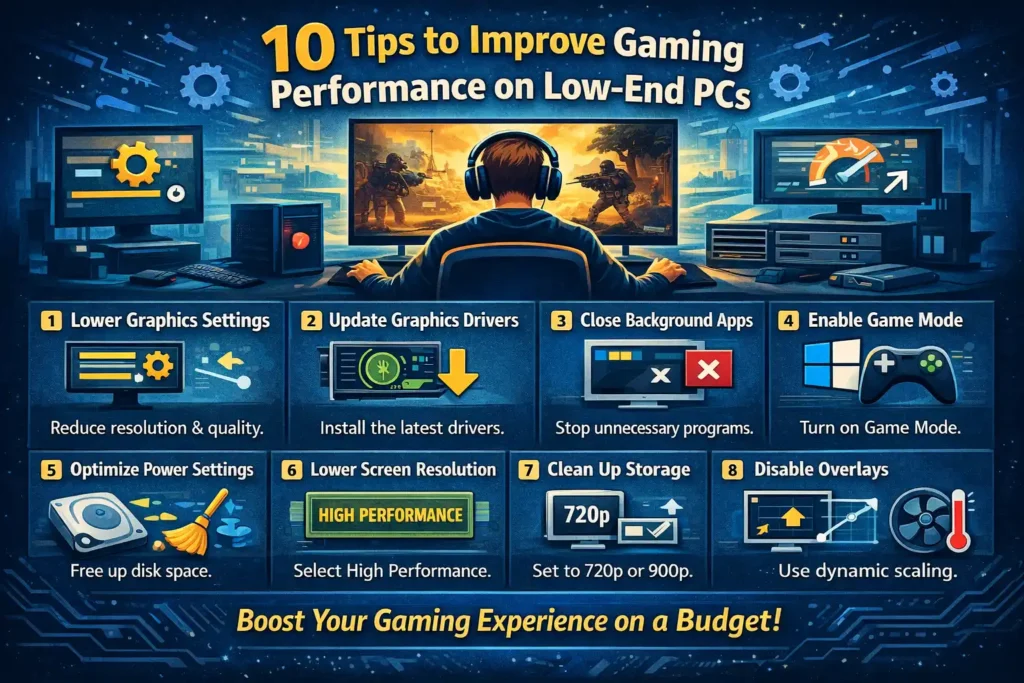
Gaming on a low-end PC can feel frustrating—low frame rates, stuttering, long load times, and sudden lag can ruin the experience. But the good news is that you don’t always need expensive hardware upgrades to enjoy smoother gameplay. With the right tweaks and habits, you can significantly improve performance even on older or budget systems.
Below are 10 practical and proven tips that can help you get the most out of your low-end PC without spending much money.
1. Lower In-Game Graphics Settings
This is the easiest and most effective step. Reducing graphics settings decreases the load on your GPU and CPU.
What to adjust:
- Set resolution to 720p or lower if needed
- Turn off shadows, motion blur, and anti-aliasing
- Reduce texture quality and effects
Quick tip: Lower resolution gives the biggest performance boost with the least visual impact on smaller screens.
2. Update Your Graphics Drivers
Outdated drivers can cause lag, crashes, or poor optimization in games.
Why it helps:
- New drivers improve performance and fix bugs
- Game developers optimize updates for recent drivers
Visit your GPU manufacturer’s website (Intel, AMD, or NVIDIA) and install the latest stable version—not beta drivers unless necessary.
3. Close Background Apps and Services
Many background programs silently use CPU, RAM, and disk resources.
Close or disable:
- Browsers with multiple tabs
- Screen recorders and launchers
- Unnecessary startup programs
Pro tip: Use Task Manager (Ctrl + Shift + Esc) to identify apps consuming high resources.
4. Use Game Mode in Windows
Windows Game Mode prioritizes system resources for gaming.
How to enable:
- Go to Settings → Gaming → Game Mode
- Turn it ON
It helps reduce background activity and stabilize frame rates, especially on low-end systems.
5. Optimize Power Settings
By default, many PCs use balanced or power-saving modes, which limit performance.
What to do:
- Go to Control Panel → Power Options
- Select High Performance or Best Performance
This allows your CPU and GPU to run at their full potential when gaming.
6. Lower Screen Resolution and Refresh Rate
Running games at your monitor’s maximum resolution can strain weak hardware.
Better approach:
- Set resolution to 1280×720 or 1600×900
- Match refresh rate to what your system can handle
Lower resolution = higher FPS and smoother gameplay.
7. Keep Storage Clean and Optimized
A nearly full or slow drive can cause stutters and long load times.
Helpful steps:
- Free up at least 20–25% storage space
- Uninstall unused games and apps
- Use Disk Cleanup or Storage Sense
If possible, installing games on an SSD can drastically improve load times.
8. Disable Overlays and Background Features
Game overlays consume memory and CPU cycles.
Disable overlays from:
- Steam
- Discord
- Xbox Game Bar
- NVIDIA GeForce Experience
These features are useful, but turning them off can give a noticeable performance boost.
9. Adjust In-Game Resolution Scaling
Many modern games offer resolution scaling or dynamic resolution options.
Why it helps:
- Renders the game at a lower resolution while keeping UI sharp
- Maintains smoother FPS without making the game unplayable
This is especially useful for open-world or shooter games.
10. Keep Your System Cool
High temperatures can force your CPU and GPU to throttle performance.
Simple cooling tips:
- Clean dust from fans and vents
- Use your laptop on a hard, flat surface
- Improve airflow around your PC
Lower temperatures = more stable and consistent performance.
Final Thoughts
You don’t need a high-end gaming PC to enjoy your favorite games. With the right settings, smart optimizations, and a bit of maintenance, even low-end systems can deliver a smooth and playable experience.
Start with the simple changes—lower settings, update drivers, close background apps—and gradually fine-tune your setup. These small steps add up and can make a big difference in how your games feel and perform.
If you want, I can also help you create game-specific performance settings for popular titles like GTA V, Valorant, or Fortnite.
How to Improve Gaming Performance Without Buying New Hardware