
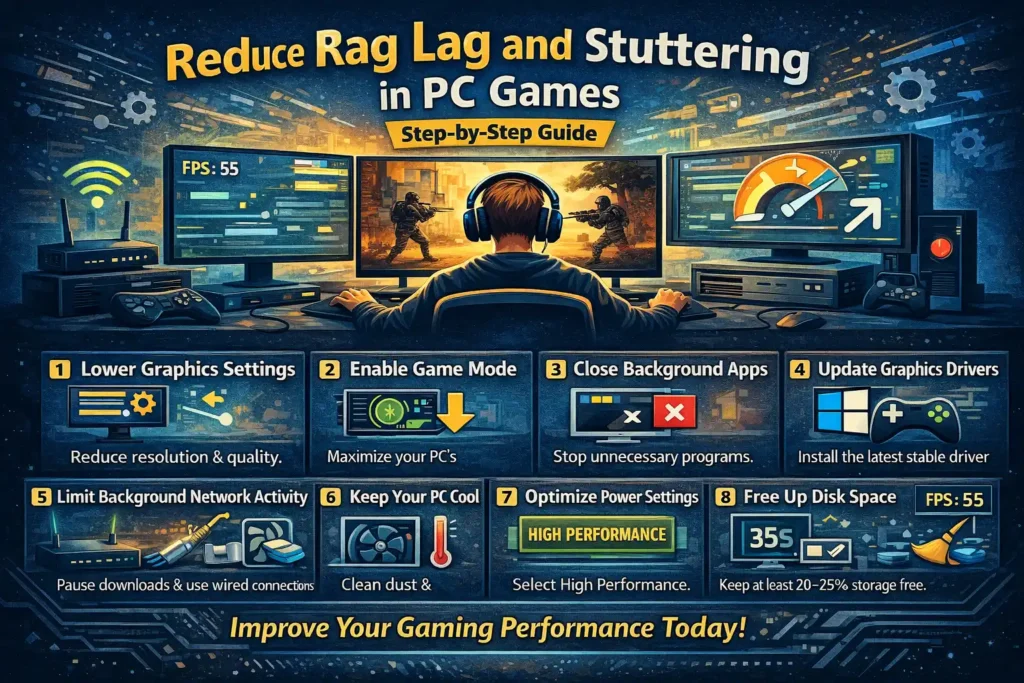
If you’ve ever been in the middle of an intense match and suddenly experienced lag, stuttering, or freezing, you know how frustrating it can be. One moment everything feels smooth, and the next your screen freezes or your character starts teleporting. The good news? In most cases, these issues are not caused by your game itself — they’re caused by settings, background processes, or small system limitations that can be fixed.
This guide will walk you step by step through practical, real-world ways to reduce lag and stuttering in PC games. You don’t need expensive hardware or technical knowledge. Just follow these steps carefully, and you’ll notice smoother gameplay almost immediately.
1. Understand the Difference Between Lag and Stuttering
Before fixing the problem, it’s important to know what you’re dealing with.
- Lag usually means network-related issues, such as high ping or unstable internet.
- Stuttering happens when your PC struggles to load frames smoothly, often due to CPU, GPU, or storage limitations.
Knowing the difference helps you apply the right solution instead of guessing.
2. Check Your System Requirements First
One of the most common mistakes gamers make is running games that exceed their system’s capabilities.
Before tweaking anything:
- Check the minimum and recommended system requirements for the game.
- Compare them with your CPU, GPU, RAM, and storage.
If your system barely meets the minimum requirements, you may need to lower settings significantly for stable gameplay.
Tip: Use tools like Task Manager or system info tools to confirm your hardware specs.
3. Lower In-Game Graphics Settings (The Right Way)
Lowering graphics isn’t about making the game look ugly—it’s about balance.
Start by adjusting these settings:
- Texture quality: Medium or Low
- Shadows: Low or Off
- Anti-aliasing: Disable or reduce
- Motion blur and film grain: Turn off
- Resolution: Drop from 1080p to 900p or 720p if needed
Lowering resolution gives the biggest performance boost with the least visual loss.
4. Enable Game Mode and Performance Settings in Windows
Windows has built-in tools designed to improve gaming performance.
Steps:
- Go to Settings → Gaming → Game Mode
- Turn Game Mode ON
Also:
- Open Power & Sleep settings
- Set power mode to High Performance or Best Performance
This ensures your system prioritizes gaming instead of background tasks.
5. Close Background Apps and Overlays
Many programs quietly use system resources even when you’re not actively using them.
Before launching a game:
- Close browsers, launchers, and unnecessary apps
- Disable overlays from:
- Steam
- Discord
- Xbox Game Bar
- NVIDIA or AMD overlays (if not needed)
Even small background processes can cause stuttering on low-end systems.
6. Update or Reinstall Graphics Drivers
Outdated or corrupted drivers are a major cause of lag and crashes.
What to do:
- Visit the official website of your GPU (NVIDIA, AMD, or Intel)
- Download the latest stable driver
- Avoid beta versions unless you know what you’re doing
After updating, restart your PC for best results.
7. Reduce Background Network Usage
If you experience lag spikes or rubber-banding in online games, your internet connection may be the issue.
Try this:
- Pause downloads and cloud syncs
- Avoid streaming videos while gaming
- Use a wired Ethernet connection if possible
A stable 20–30 Mbps connection is usually enough for online gaming if latency is low.
8. Optimize Storage and Free Up Space
A nearly full hard drive can slow down loading and cause in-game stutters.
To fix this:
- Keep at least 20–25% free storage
- Move games to an SSD if possible
- Delete unused files and old programs
SSDs significantly reduce loading times and texture streaming delays.
9. Monitor Temperatures and Prevent Thermal Throttling
When your CPU or GPU overheats, it slows itself down to avoid damage.
Signs of thermal throttling:
- Sudden FPS drops
- Loud fan noise
- Performance drops after long sessions
Simple fixes:
- Clean dust from fans and vents
- Improve airflow around your PC
- Use a cooling pad for laptops
Lower temperatures mean smoother and more consistent performance.
10. Test and Adjust Gradually
Avoid changing everything at once. Test changes one by one so you know what actually helps.
Use built-in FPS counters or tools like:
- Steam FPS overlay
- MSI Afterburner (optional)
This helps you identify the best balance between performance and visuals.
Common Mistakes to Avoid
- Playing on ultra settings with weak hardware
- Running multiple background apps while gaming
- Ignoring driver updates for months
- Using aggressive “FPS booster” software that causes instability
- Assuming lag always means bad internet
Avoiding these mistakes alone can dramatically improve your experience.
Frequently Asked Questions
Q1: Can low-end PCs really run modern games smoothly?
Yes, many modern games are optimized for low-end systems if settings are adjusted correctly.
Q2: Does more RAM always improve performance?
Only if you currently don’t have enough. For most games, 8–16GB is sufficient.
Q3: Is using game booster software safe?
Some are useful, but many do very little. Stick to trusted tools and built-in system settings.
Q4: Should I overclock my CPU or GPU?
Only if you understand the risks. Overclocking can improve performance but may cause instability or overheating if done incorrectly.
Final Thoughts
Lag and stuttering can ruin the gaming experience, but they’re rarely permanent problems. With the right combination of system tweaks, settings adjustments, and smart habits, even a modest PC can deliver smooth and enjoyable gameplay.
Start small, test changes one by one, and focus on stability over visuals. You’ll be surprised how much performance you can unlock without spending a single dollar.
If you want, I can also help you create game-specific optimization guides for titles like GTA V, Valorant, CS2, or Fortnite.