
How to Choose the Right Gaming PC for Your Budget
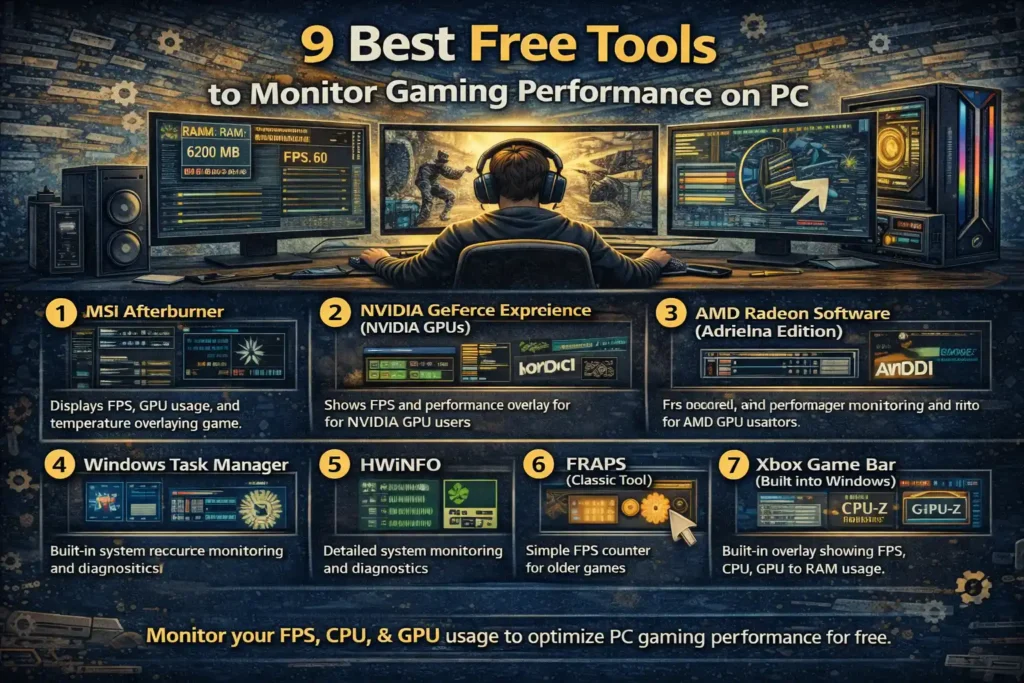
If your game feels laggy, stutters during intense moments, or suddenly drops frames, the problem often isn’t the game itself — it’s your system’s performance. Knowing what’s happening inside your PC while you play is the first step to fixing those issues.
Thankfully, you don’t need expensive software to monitor your gaming performance. There are several free, reliable tools that help you track FPS, CPU usage, GPU temperature, and more.
Here are nine of the best free tools every PC gamer should know about.
1. MSI Afterburner
MSI Afterburner is one of the most popular performance monitoring tools for gamers — and for good reason.
It allows you to track real-time data such as FPS, GPU usage, temperature, clock speeds, and memory usage. You can also display this information as an on-screen overlay while gaming.
Why it’s useful:
- Real-time FPS and temperature monitoring
- Works with most GPUs (not just MSI cards)
- Highly customizable overlay
Best for: Gamers who want detailed performance data while playing.
2. NVIDIA GeForce Experience (NVIDIA GPUs)
If you use an NVIDIA graphics card, GeForce Experience is a simple and convenient tool.
It offers built-in performance monitoring, driver updates, and automatic game optimization. The in-game overlay shows FPS, GPU usage, and system performance without extra setup.
Why it’s useful:
- Easy to use
- Automatically updates drivers
- Built-in performance overlay
Best for: NVIDIA GPU users who want a clean, simple solution.
3. AMD Radeon Software (Adrenalin Edition)
For AMD GPU users, Radeon Software provides detailed performance tracking and tuning tools.
It shows real-time GPU stats, frame rates, and temperature data. You can also record gameplay or enable performance overlays.
Why it’s useful:
- Built specifically for AMD hardware
- Detailed performance and tuning options
- Easy-to-read interface
Best for: AMD graphics card users.
4. Windows Task Manager
Many people overlook Task Manager, but it’s surprisingly powerful for monitoring performance.
You can quickly check CPU usage, RAM usage, disk activity, and GPU usage while a game is running.
Why it’s useful:
- Built into Windows
- No installation needed
- Helps identify background apps using resources
Best for: Quick troubleshooting and basic performance checks.
5. HWiNFO
HWiNFO is a detailed system monitoring tool designed for advanced users who want deep system insights.
It shows temperatures, voltages, clock speeds, fan speeds, and more — all in real time.
Why it’s useful:
- Extremely detailed hardware monitoring
- Ideal for diagnosing overheating or instability
- Lightweight and accurate
Best for: Users who want deep system diagnostics.
6. FRAPS (Classic Tool)
Although older, FRAPS is still a simple way to check FPS in games.
It shows a small FPS counter in the corner of your screen and can log performance data.
Why it’s useful:
- Very lightweight
- Easy to use
- Good for basic FPS tracking
Note: It doesn’t support modern features like GPU temperature monitoring.
7. Xbox Game Bar (Built into Windows)
Windows includes a built-in performance overlay that many people forget about.
You can access it by pressing Win + G during gameplay.
Why it’s useful:
- Shows FPS, CPU, GPU, and RAM usage
- No additional software needed
- Lightweight and convenient
Best for: Casual monitoring without installing extra tools.
8. CPU-Z and GPU-Z
These two tools focus on hardware details rather than live performance.
They show accurate information about your CPU, GPU, memory, and motherboard.
Why they’re useful:
- Helps verify hardware specs
- Useful for troubleshooting and system checks
- Lightweight and reliable
Best for: Understanding your PC’s exact hardware configuration.
9. CapFrameX
CapFrameX is a modern performance analysis tool used by advanced users and reviewers.
It records detailed frame-time data and helps analyze stuttering and frame pacing.
Why it’s useful:
- Deep FPS and frame-time analysis
- Great for benchmarking and testing
- Ideal for comparing performance changes
Best for: Enthusiasts and advanced users who want precise data.
Final Thoughts
Monitoring your PC’s performance is one of the best ways to improve your gaming experience. Whether you’re troubleshooting lag, optimizing settings, or just curious about how your system performs, these tools give you the insight you need.
You don’t need all of them—just choose the ones that match your skill level and goals. Even using one or two of these tools can help you identify issues, improve stability, and enjoy smoother gameplay.