
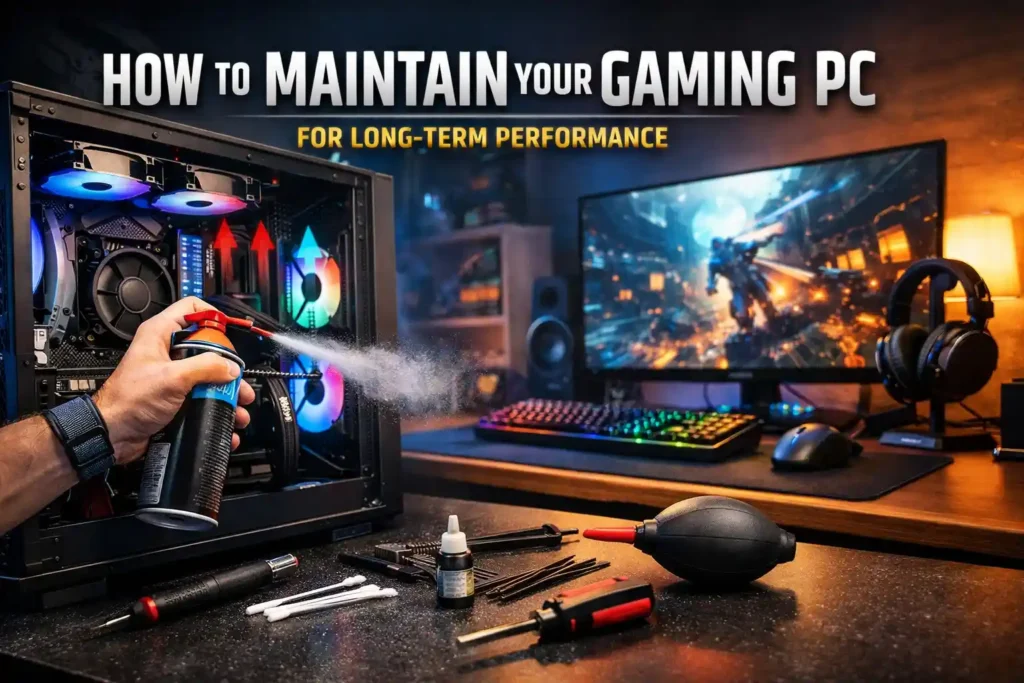
🔑 Key Gaming PC Maintenance Tips
| Area | What to Do | How Often | Why It Matters |
|---|---|---|---|
| Internal Cleaning | Remove dust from CPU cooler, GPU, fans, PSU using compressed air | Every 2–3 months | Prevents overheating and performance loss |
| External Cleaning | Clean keyboard, mouse sensor, and monitor | Monthly | Improves control accuracy and visibility |
| Airflow Setup | Front fans = intake, rear/top fans = exhaust | One-time setup + checks | Maintains stable internal temperatures |
| Cable Management | Tie cables behind motherboard tray | One-time + upgrades | Improves airflow and cooling efficiency |
| Temperature Monitoring | Check CPU & GPU temps during gaming | Monthly or if issues occur | Early detection of cooling problems |
| Safe Gaming Temps | CPU: 65–85°C, GPU: 60–85°C | Always | Avoids thermal throttling & damage |
| GPU Driver Updates | Update graphics drivers from official sources | Every 1–2 months | Boosts FPS, stability, game compatibility |
| OS Updates | Keep system updated (avoid mid-session updates) | Regular | Security + system stability |
| Storage Management | Keep 20–25% free disk space | Ongoing | Faster load times and system response |
| Unused Games Removal | Uninstall games you don’t play | Monthly | Frees space, improves performance |
| Thermal Paste Replacement | Replace CPU thermal paste | Every 2–3 years | Reduces CPU temperatures significantly |
| Avoid Overcleaning | Don’t clean daily or use vacuum inside case | Always | Prevents static or hardware damage |
You know what, once I start my PC and hear it running louder, hotter, or slower than it did a year ago, I know I’m not alone. Most gaming rigs don’t just suddenly become “bad.” They usually lose performance over time simply because of neglect. Dust builds up, software gets messy, and temperatures creep higher until all those little issues pile up and make your games start stuttering or crashing.
And I know I can keep my gaming PC running strong for years without being a hardware expert or spending a fortune. The truth is, I realized I didn’t need to be a pro to make it happen. Just by sticking to a few simple habits and doing some basic maintenance, I’ve been able to protect my performance, avoid upgrades I didn’t actually need, and keep my gameplay smooth for the long run.
This guide walks you through practical, beginner-friendly steps to maintain your gaming PC properly—both hardware and software—without going overboard…. eGameinfo.com
Why Gaming PC Maintenance Matters
A gaming PC works harder than a normal office computer. High frame rates, long sessions, and demanding games push your CPU, GPU, and cooling system to their limits.
Without maintenance:
- Temperatures rise
- Fans work harder and wear out
- Performance drops due to thermal throttling
- Components age faster than they should
Regular maintenance keeps your system cool, stable, and reliable, which directly impacts FPS, loading times, and overall smoothness.
Step 1: Keep Your Gaming PC Clean (Most Important)
Clean Dust From Inside the Case
Dust is the number one enemy of PC performance. It blocks airflow and traps heat.
How often?
- Every 2–3 months (more often if your room is dusty or you have pets)
What you need:
- Soft brush or microfiber cloth
- Compressed air (or a hand air blower)
Steps:
- Shut down the PC and unplug it
- Open the side panel
- Gently blow dust out of:
- CPU cooler
- GPU fans
- Case fans
- Power supply intake
- Hold fans in place while cleaning to avoid spinning damage
👉 Avoid vacuum cleaners inside the case. They can cause static damage.
Clean External Parts Too
Don’t ignore the outside:
- Keyboard (dust and crumbs affect key response)
- Mouse sensor (affects aim accuracy)
- Monitor (smudges reduce clarity)
A clean setup also helps airflow around your PC.
Step 2: Maintain Proper Airflow and Cooling
Good airflow keeps temperatures stable during long gaming sessions.
Check Fan Placement
Most cases work best with:
- Front fans: Intake (pull cool air in)
- Rear/top fans: Exhaust (push hot air out)
Make sure fans aren’t fighting each other.
Manage Cables Inside the Case
Messy cables block airflow.
Simple tips:
- Tie cables behind the motherboard tray
- Keep space clear in front of fans
- Avoid cables hanging near GPU fans
Even basic cable management can reduce temperatures by a few degrees.
Step 3: Monitor Temperatures Regularly
You don’t need to check temps every day, but knowing your normal range helps spot problems early.
Safe general ranges while gaming:
- CPU: 65–85°C
- GPU: 60–85°C
If temperatures suddenly spike:
- Dust buildup
- Fan failure
- Poor airflow
- Old thermal paste
Catching this early prevents long-term damage.
Step 4: Update Drivers and System Software
Outdated software can cause performance drops, crashes, and compatibility issues.
Graphics Drivers
GPU drivers are especially important for gaming.
Why update them?
- Performance improvements in new games
- Bug fixes
- Stability updates
Update only from official sources and avoid beta drivers unless needed.
Operating System Updates
Keep your OS updated for:
- Security fixes
- Stability improvements
- Hardware compatibility
Just avoid updating in the middle of an important gaming session.
Step 5: Keep Storage Healthy
Slow storage affects:
- Game loading times
- System responsiveness
- In-game texture streaming
Manage Your Drive Space
- Keep at least 20–25% free space
- Uninstall games you no longer play
- Delete temporary files occasionally
If you’re using an HDD:
- Avoid filling it completely
- Periodic cleanup helps performance
SSDs don’t need defragmentation, but free space still matters.
Step 6: Replace Thermal Paste When Needed
Thermal paste transfers heat from the CPU to the cooler. Over time, it dries out.
When to replace it:
- Every 2–3 years
- If CPU temperatures increase without reason
This step isn’t mandatory for beginners, but it can significantly reduce temperatures on older
Authority & Trust
- NVIDIA Driver Updates
https://www.nvidia.com/Download/index.aspx - AMD Graphics Drivers
https://www.amd.com/en/support - Intel PC Maintenance Tips
https://www.intel.com/content/www/us/en/gaming/resources/pc-maintenance.html