
How to Set Up a Gaming PC for the First Time
If you’ve ever launched a game full of excitement—only to be greeted by stuttering, input lag, or random frame drops—you’re not alone. Many PC gamers assume poor performance means weak hardware. In reality, Windows itself often plays a bigger role than people realize.
Out of the box, Windows is designed to balance productivity, visuals, and power saving. That’s great for everyday use—but not ideal for gaming. The good news? You don’t need expensive upgrades or technical wizardry. With the right Windows settings, you can unlock smoother gameplay, faster response times, and more consistent frame rates.
This step-by-step guide walks you through practical Windows optimizations that work for beginner to intermediate gamers worldwide.
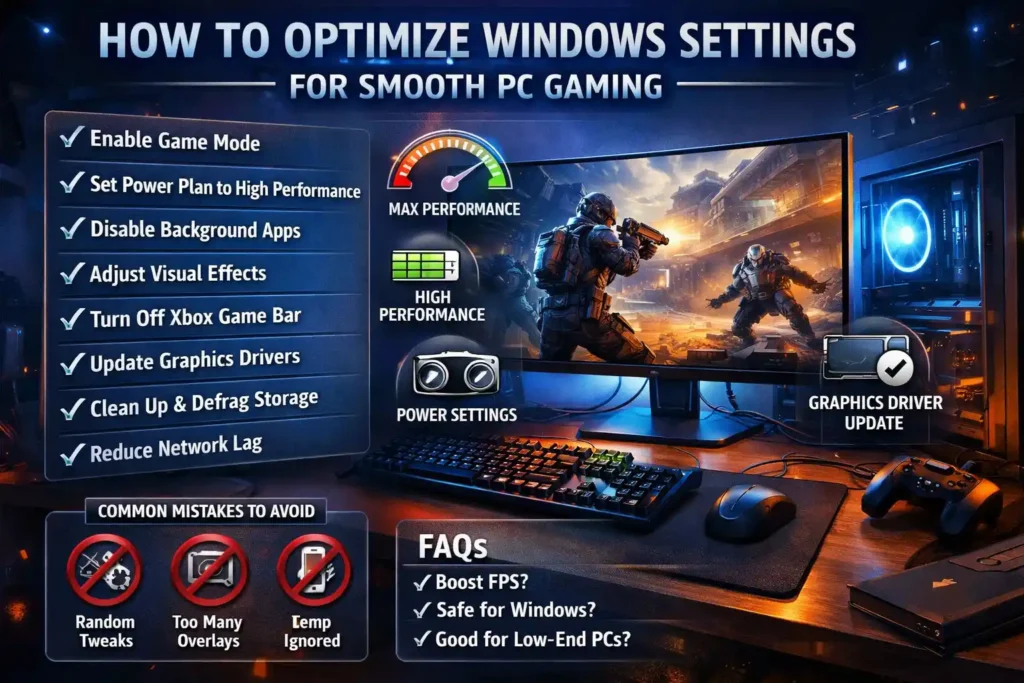
Step 1: Start With Windows Game Mode (Don’t Skip This)
Windows includes a built-in Game Mode designed specifically for gaming performance.
How to enable Game Mode
- Open Settings
- Go to Gaming
- Click Game Mode
- Toggle it On
Why it matters
Game Mode:
- Prioritizes CPU and GPU resources for your game
- Reduces background activity
- Prevents Windows Update from installing drivers mid-game
Tip: Game Mode isn’t magic, but it creates a stable baseline for gaming.
Step 2: Optimize Power Settings for Maximum Performance
By default, Windows often runs on a balanced or power-saving profile. That’s bad news for games.
Change your power plan
- Open Control Panel
- Go to Power Options
- Select High performance
- If available, choose Ultimate Performance
What this improves
- Prevents CPU throttling
- Keeps clock speeds stable
- Reduces sudden FPS drops during intense scenes
Laptop users: Expect higher temperatures and battery drain. Always game while plugged in.
Step 3: Disable Unnecessary Background Apps
Many apps quietly run in the background, stealing system resources.
Stop startup programs
- Press Ctrl + Shift + Esc to open Task Manager
- Go to the Startup tab
- Disable apps you don’t need while gaming (launchers, chat tools you don’t use, updaters)
Limit background apps
- Go to Settings → Apps → Installed apps
- Review apps that constantly run or auto-sync
- Uninstall what you don’t use
Example: RGB software, phone sync apps, or unused cloud tools can hurt performance more than expected.
Step 4: Adjust Visual Effects for Performance
Windows visual effects look nice, but they cost performance—especially on mid-range PCs.
Optimize visual effects
- Search “Adjust the appearance and performance of Windows”
- Select Adjust for best performance
- Or manually disable:
- Animations
- Shadows
- Transparency effects
Result
- Faster window response
- Less GPU and CPU overhead
- More consistent frame pacing in games
This step alone can noticeably help older systems.
Step 5: Turn Off Xbox Game Bar Recording Features
Windows includes recording and overlay tools that can impact FPS.
What to disable
- Go to Settings → Gaming → Xbox Game Bar
- Turn it Off if you don’t use it
- Go to Captures
- Disable:
- Background recording
- Audio capture (if unused)
Why this helps
Background recording constantly monitors gameplay, which can:
- Increase input lag
- Reduce average FPS
- Cause micro-stutters
If you stream or record, use dedicated software instead.
Step 6: Keep Graphics Drivers Updated (The Right Way)
Outdated drivers are one of the most common causes of poor gaming performance.
Best practices
- Download drivers directly from your GPU manufacturer
- Avoid third-party driver tools
- Update only when stable (not every beta release)
Signs you need a driver update
- Sudden FPS drops after a game update
- Screen flickering or crashes
- Poor performance in new games
Pro tip: Clean installs can help if you’re facing unexplained stutters.
Step 7: Optimize Windows Storage and Disk Usage
Games constantly read data from storage. Poor disk performance causes stutters and long load times.
Essential storage steps
- Keep at least 15–20% free space on your main drive
- Install games on an SSD if possible
- Run Storage Sense periodically
Defragment (HDD only)
- Search Defragment and Optimize Drives
- Optimize HDDs monthly
- Never defrag SSDs manually
Step 8: Reduce Network Lag Through Windows Settings
Even powerful PCs lag if network settings are ignored.
Simple network optimizations
- Use a wired Ethernet connection
- Disable background downloads
- Pause cloud sync apps during gaming
- Close browsers and streaming apps
For competitive games, stability matters more than raw speed.
Common Mistakes to Avoid
Many gamers hurt performance while trying to “optimize.”
- ❌ Installing random optimization software
- ❌ Disabling essential Windows services blindly
- ❌ Forcing extreme registry tweaks
- ❌ Running multiple overlays at once
- ❌ Ignoring system temperatures
Real optimization is about balance, not shortcuts.
Frequently Asked Questions (FAQ)
1. Will these settings increase my FPS?
They improve consistency, reduce stutters, and often raise average FPS—but results depend on hardware.
2. Are these settings safe for Windows?
Yes. All changes use built-in Windows options and are fully reversible.
3. Should I optimize Windows for every game?
No. These are system-level improvements that benefit all games.
4. Do low-end PCs benefit more from this?
Absolutely. Lower-end systems often see the biggest improvement.
Final Thoughts: Small Tweaks, Big Difference
Optimizing Windows for gaming isn’t about hacking the system—it’s about removing obstacles between your hardware and your game. These settings won’t turn a weak PC into a powerhouse, but they will help your system perform closer to its true potential.
Think of it like tuning a car. The engine was already capable—you just needed the right adjustments.
Take your time, apply the steps gradually, and test your games after each change. Smooth gaming is built step by step—and now, you know exactly where to start. 🎮
7 Common Reasons Why PC Games Lag and How to Fix Them