
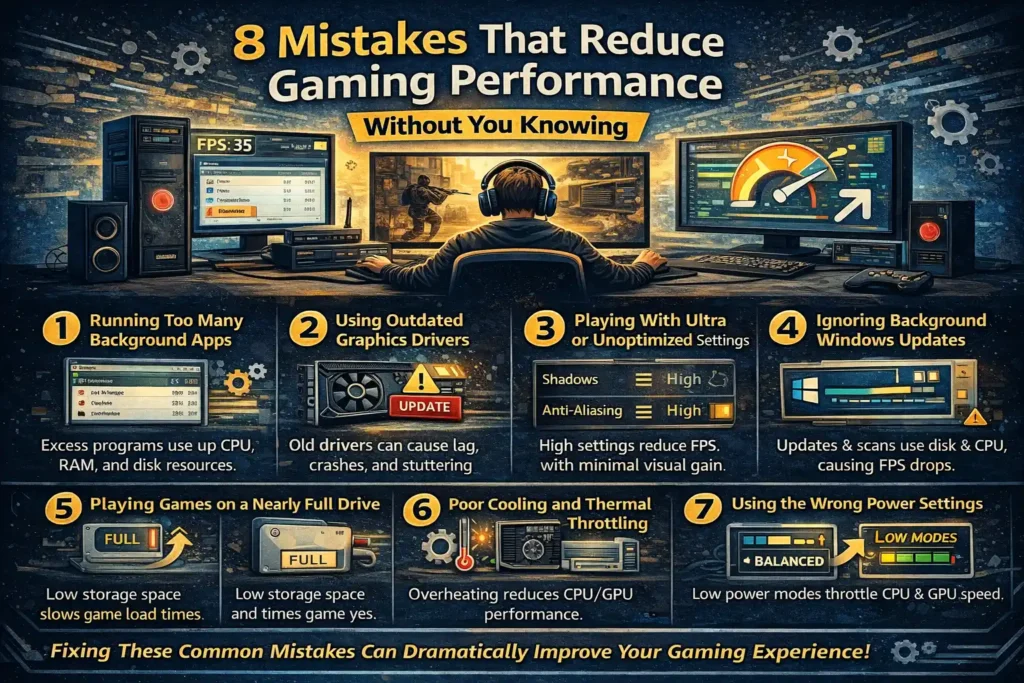
Even if you own a decent PC or laptop, you might still experience lag, stutters, or sudden FPS drops while gaming. Many players assume the problem is weak hardware, but in reality, performance issues often come from small mistakes that go unnoticed.
The good news? Most of these issues are easy to fix once you know what to look for. Below are eight common mistakes that silently reduce gaming performance, along with simple explanations and practical tips to help you fix them.
1. Running Too Many Background Apps
One of the most common performance killers is background apps using your system resources without you realizing it.
Programs like web browsers, launchers, screen recorders, and update services consume CPU, RAM, and disk usage even when minimized. This leaves fewer resources available for your game.
Why it hurts performance:
Your game has to compete with other apps for processing power, causing frame drops and stuttering.
Quick fix:
Close unnecessary apps before launching a game. Use Task Manager to check what’s running in the background.
2. Using Outdated Graphics Drivers
Graphics drivers play a huge role in how well games perform. Old or outdated drivers can cause crashes, stuttering, visual glitches, and low FPS.
Why it matters:
Game developers often release optimizations specifically designed for newer driver versions.
Quick fix:
Visit the official website of your GPU manufacturer (NVIDIA, AMD, or Intel) and install the latest stable driver—not beta versions unless necessary.
3. Playing With Ultra or Unoptimized Settings
Many gamers assume higher graphics settings always mean a better experience. In reality, ultra settings often offer minimal visual improvement while heavily reducing performance.
Common performance-heavy settings include:
- Shadows
- Anti-aliasing
- Motion blur
- Ray tracing
Quick tip:
Lower shadows and effects first. These changes often boost FPS without making the game look much worse.
4. Ignoring Background Windows Updates and Tasks
Windows sometimes runs updates, scans, or background maintenance without clearly notifying the user.
Why this is a problem:
These tasks use disk, CPU, and internet bandwidth—exactly what your game needs.
Fix:
Pause updates during gaming sessions and avoid installing software updates while playing.
5. Playing Games on a Nearly Full Drive
A full or nearly full drive can seriously impact performance, especially if your game is installed on it.
Why it matters:
Games need free space to load textures, cache data, and update files efficiently.
Best practice:
Always keep at least 20–25% free space on your drive, especially if you’re using an SSD.
6. Poor Cooling and Thermal Throttling
When your system gets too hot, it automatically reduces performance to protect hardware. This is known as thermal throttling.
Common signs:
- Sudden FPS drops after playing for a while
- Loud fan noise
- Hot keyboard or case
Simple fixes:
- Clean dust from fans and vents
- Improve airflow around your PC
- Avoid blocking air vents
Good cooling helps maintain consistent performance during long gaming sessions.
7. Using the Wrong Power Settings
Many systems run on power-saving or balanced modes by default, which limits CPU and GPU performance.
Why it affects gaming:
Power-saving modes reduce clock speeds to save energy, hurting performance.
Solution:
Switch to High Performance or Best Performance mode in your system’s power settings when gaming.
8. Ignoring In-Game Optimization Features
Modern games often include built-in performance tools like dynamic resolution scaling, performance presets, or FPS limiters.
Mistake:
Ignoring these features or leaving everything on default.
Better approach:
Use in-game performance options to balance visuals and frame rate based on your system’s capabilities.
Final Thoughts
Most gaming performance problems don’t come from weak hardware—they come from small, overlooked mistakes that slowly add up. By fixing these issues, you can dramatically improve frame rates, reduce stuttering, and enjoy a smoother gaming experience without spending money on upgrades.
If you focus on proper settings, system maintenance, and smart optimization, even a modest PC can deliver solid gaming performance. Small changes really do make a big difference.
https://support.microsoft.com/en-us/windows/tips-to-improve-pc-performance